How to Speed Up an Old Computer Without Buying a New One
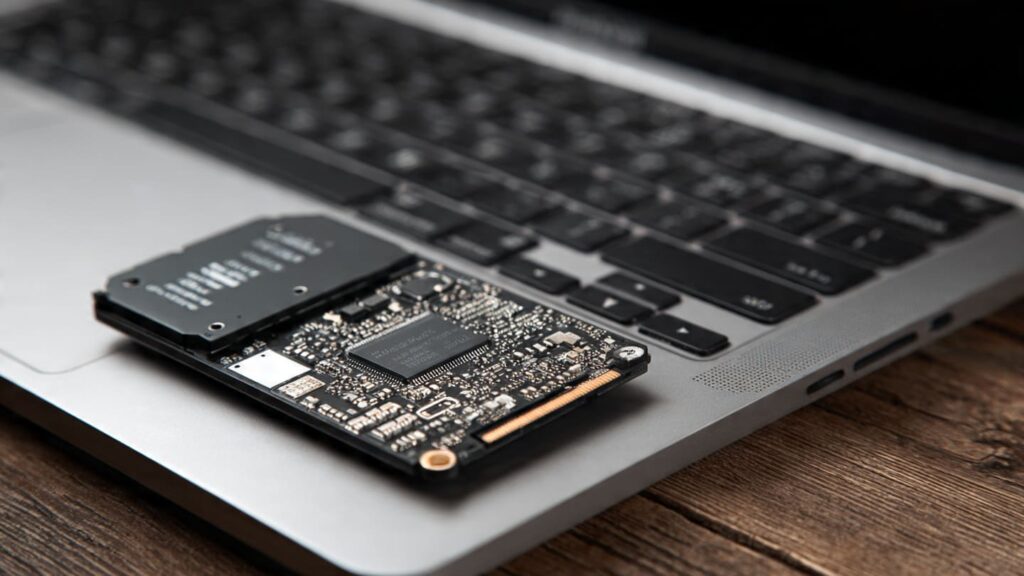
The single biggest speed boost for most aging PCs isn’t a new processor. It’s a $40–$80 solid-state drive. Swapping a 5,400 RPM hard drive for even a budget SATA SSD can cut boot times by 60–80% and slash app launch delays to a few seconds. In many real-world cases, that one change makes a five-year-old laptop feel newer than its spec sheet suggests.
In this guide, you’ll get a practical, prioritized roadmap: which upgrades actually move the needle, which tweaks are placebo, and how to measure improvement with tools like PassMark and CrystalDiskMark. We’ll compare SSD types, RAM configurations, and operating system optimizations—plus show when it’s rational to stop investing and start planning a replacement.
1. Replace the Hard Drive With an SSD
If your system still runs on a spinning hard drive (HDD), that’s your bottleneck. Mechanical drives average 80–150 MB/s sequential reads and much slower random I/O. A basic SATA SSD pushes 450–550 MB/s with dramatically lower latency. Random read/write performance improves by an order of magnitude.
That matters more than raw CPU speed for everyday tasks.
According to benchmarks on PassMark’s disk database, even entry-level SATA SSDs score 5–10x higher than 5,400 RPM HDDs in overall disk rating. If you want to test your own machine before and after, CrystalDiskMark’s open-source tool on GitHub is a solid starting point.
SSD Options Compared
Here’s where things get interesting:
| Storage Type | Interface | Typical Read Speed | Cost (1TB, 2026 avg.) | Best For | Notes |
|---|---|---|---|---|---|
| 5,400 RPM HDD | SATA | 80–120 MB/s | $40–$50 | Archival storage | High latency, noisy |
| SATA SSD | SATA III | 450–550 MB/s | $50–$80 | Most upgrades | Massive real-world gain |
| NVMe SSD (PCIe 3.0) | M.2 PCIe | 1,500–3,500 MB/s | $60–$100 | Newer systems | Requires M.2 slot |
| NVMe SSD (PCIe 4.0) | M.2 PCIe | 5,000–7,000 MB/s | $90–$140 | Gaming/workstations | Often CPU-limited on older PCs |
If your motherboard only supports SATA, don’t worry. You’ll still see dramatic gains. NVMe speeds look impressive on spec sheets, but for web browsing and office work, the jump from HDD to SATA SSD is far more noticeable than SATA to NVMe.
That’s the honest truth.
2. Add More RAM (If You’re Under 16GB)
Modern browsers are memory hogs. A single Chrome tab can consume 200–400MB, and heavy sites can spike past 1GB. Microsoft’s own Windows 11 documentation lists 4GB as the minimum requirement, but realistically, 8GB is tight in 2026.
If you’re running 4GB or 8GB and frequently hit 80–100% memory usage in Task Manager, you’re forcing the system to swap to disk. Even with an SSD, that slows everything down.
RAM Upgrade Impact
| Installed RAM | Typical Experience in 2026 | Recommended? |
|---|---|---|
| 4GB | Constant paging, sluggish multitasking | Upgrade immediately |
| 8GB | Acceptable for light use | Upgrade if possible |
| 16GB | Smooth for most users | Sweet spot |
| 32GB+ | Overkill for basic tasks | Useful for creative workloads |
You can verify RAM pressure in Windows Task Manager or macOS Activity Monitor. If memory usage regularly sits above 75% during normal work, adding RAM will likely produce tangible improvement.
Check your motherboard’s maximum capacity before buying. And match memory type (DDR3, DDR4, DDR5). Mixing speeds won’t break things, but it can throttle performance.
3. Clean Up Startup and Background Processes
Here’s a less glamorous fix. But it works.
Windows systems often boot with 10–20 startup programs: cloud sync clients, updaters, chat tools, printer utilities. Each one eats CPU cycles and RAM. Over time, that drag compounds.
Open Task Manager → Startup tab. Disable anything nonessential.
For deeper cleanup, Microsoft’s Sysinternals suite includes Autoruns, which gives a granular look at services and startup hooks. It’s more technical, but powerful.
And while you’re there, uninstall unused software. Storage bloat affects indexing and disk scanning. A clean system simply behaves better.
This one surprises people.
A fresh Windows installation can feel dramatically faster than a five-year-old, heavily modified environment. Registry clutter, outdated drivers, and software conflicts accumulate over time.
If you’re on Windows 10, confirm support timelines. Microsoft plans to end mainstream support for Windows 10 in October 2025 (per official lifecycle documentation), which means security updates become limited. That alone might justify a clean Windows 11 install—if your hardware supports TPM 2.0 and Secure Boot.
On macOS, older Intel Macs often benefit from a clean install as well, though Apple’s optimization between major releases has improved in recent years.
Reinstallation isn’t glamorous. But it can reset years of digital debris.
5. Check for Thermal Throttling
Here’s a culprit many users miss: heat.
Dust-clogged fans and dried thermal paste cause CPUs to throttle. Instead of running at 3.5 GHz under load, your chip may drop to 1.8 GHz to prevent overheating. That’s a massive performance hit.
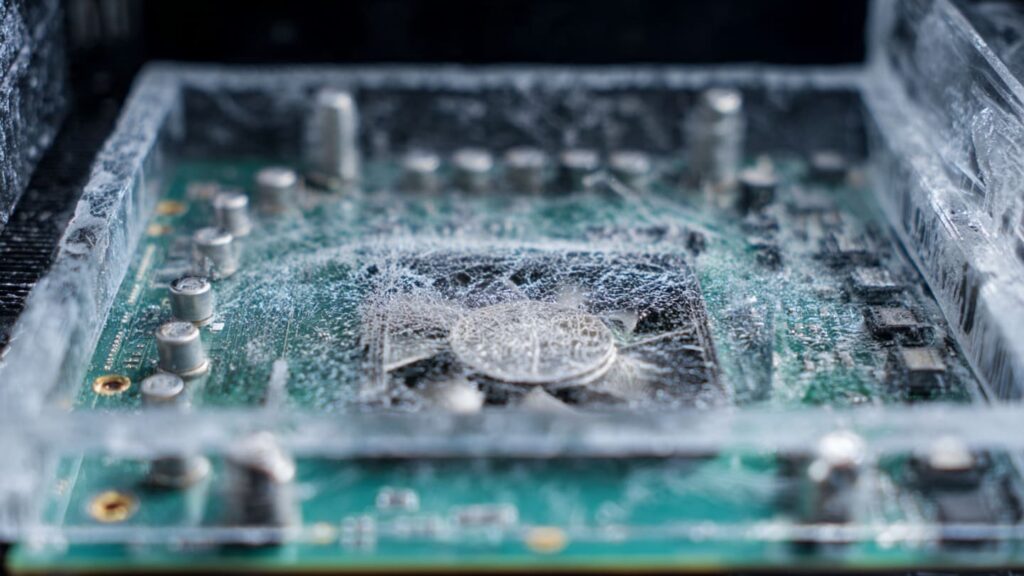
Use a monitoring tool like HWMonitor or Core Temp to check CPU temperatures under load. Anything consistently above 90°C on laptops is a red flag.
Cleaning fans and replacing thermal paste can restore lost performance. It won’t make your CPU newer—but it can let it run at its intended speed again.
6. Measure Before and After
Don’t guess. Benchmark.
Use:
- PassMark PerformanceTest (CPU, RAM, disk scoring) — https://www.passmark.com/
- Geekbench Browser for CPU comparisons — https://browser.geekbench.com/
- CrystalDiskMark for storage testing — https://github.com/hiyohiyo/CrystalDiskMark
Run tests before upgrading. Then again after.
Anecdotally, SSD swaps often raise overall system performance scores by 30–50% in disk-heavy workflows. CPU scores won’t change—but perceived speed absolutely will.
Benchmark numbers aren’t everything. But they keep you honest.
When It’s Not Worth Upgrading
Sometimes the math doesn’t work.
If your CPU is a decade old (e.g., pre-Intel 6th gen or early AMD FX series), lacks AVX2 support, or can’t install a supported OS, investing $150–$200 in upgrades may not be rational.
Here’s a quick decision framework:
| Scenario | Upgrade? | Reason |
|---|---|---|
| HDD + 8GB RAM | Yes | Huge gains for low cost |
| SSD + 8GB RAM | Maybe | Add RAM if multitasking |
| SSD + 16GB RAM, slow CPU | Probably not | CPU becomes bottleneck |
| No OS support | No | Security risk long-term |
Security matters. Performance is irrelevant if the system can’t receive patches aligned with NIST security framework guidance (see NIST SP 800-53 overview at https://csrc.nist.gov/).
At some point, replacement is smarter than incremental upgrades.
What Actually Delivers the Biggest Gains
If you only do one thing, replace the hard drive with an SSD.
If you do two, add RAM to reach 16GB.
If you do three, clean install the OS.
Everything else—registry cleaners, “PC optimizer” apps, miracle utilities—is mostly noise. In fact, many of those tools slow systems further.
Real improvements come from eliminating bottlenecks. Storage latency. Memory pressure. Thermal throttling.
Not magic.
Conclusion: Focus on Bottlenecks, Not Marketing
An old computer feels slow for specific, measurable reasons. Usually it’s disk latency. Sometimes it’s insufficient RAM. Occasionally it’s heat. Rarely is it simply “old age.”
For most systems built in the last seven years, a $70 SSD and a modest RAM upgrade can extend usable life by two to four years. That’s a strong return on investment.
But if your machine lacks OS support, struggles with modern instruction sets, or can’t exceed 8GB of RAM, you’re hitting architectural limits. At that point, upgrading becomes sunk cost.
The broader trend is clear: storage and memory are cheap; CPUs evolve more slowly in day-to-day impact. So prioritize the changes that attack real bottlenecks.
You might be surprised how new your “old” machine feels.
References
- PassMark Software — Disk and CPU benchmark database — https://www.passmark.com/
- Geekbench Browser — CPU benchmark comparisons — https://browser.geekbench.com/
- CrystalDiskMark GitHub Repository — https://github.com/hiyohiyo/CrystalDiskMark
- Microsoft Windows Lifecycle Documentation — https://learn.microsoft.com/lifecycle/
- NIST SP 800-53 Security and Privacy Controls Framework — https://csrc.nist.gov/
- Ars Technica — SSD vs HDD performance analysis (archival coverage)
- IDC Worldwide PC Tracker (market context on PC longevity trends)